Introduction
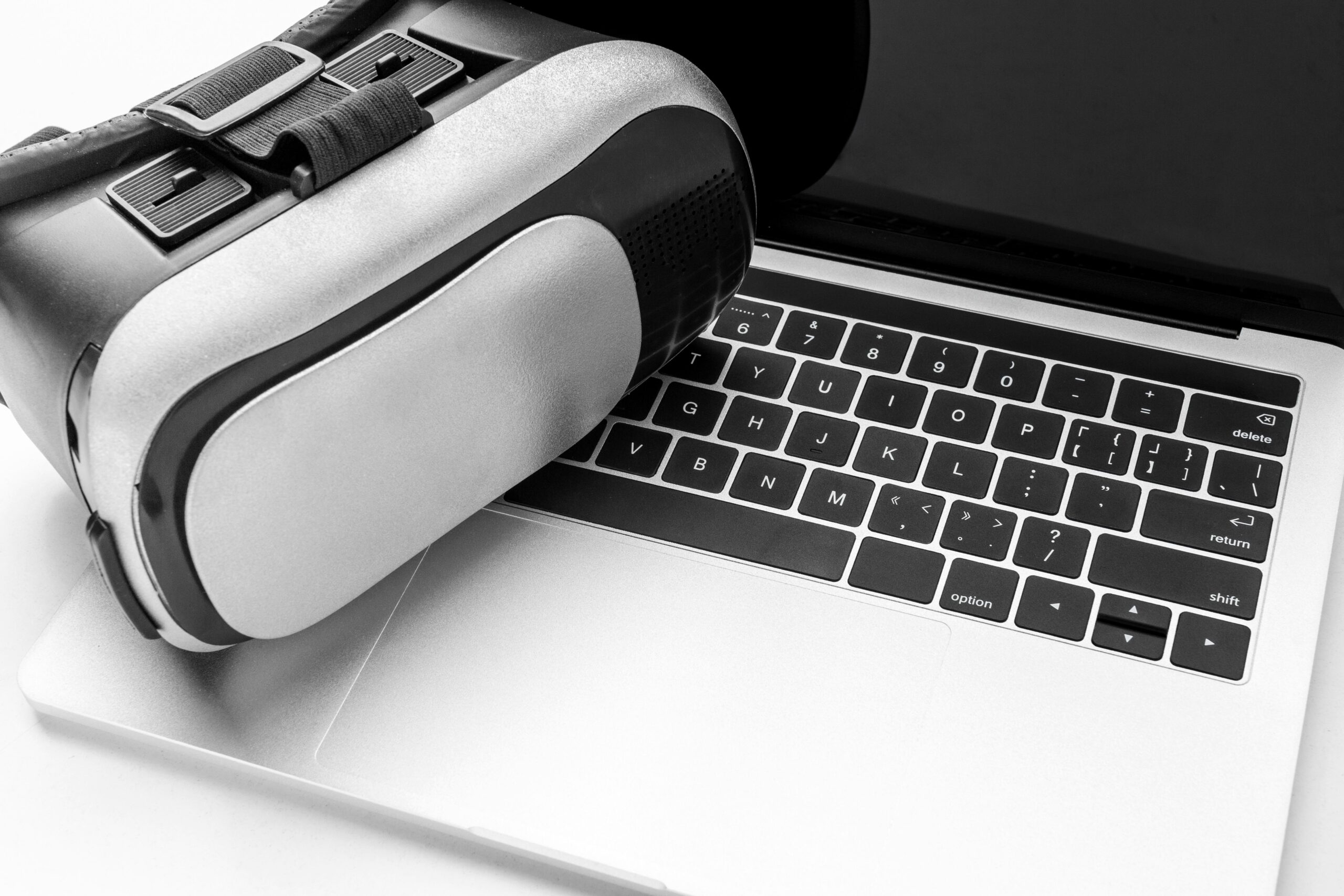
While Virtual Reality (VR) might be immersive and delightful, running it on a gaming laptop necessitates a considerable amount of tailoring. Because of a gaming laptop’s confined cooling, mobility, and power, performance adjustments must be made. This article details the optimization of a gaming laptop for VR, focusing on the removal of latency and guaranteeing continuous flow of gameplay.
Understanding VR Requirements
What VR Needs from Your System
VR gaming necessitates high performance computing for graphics, frame rates, and latency, all of which are fundamental to creating an engrossing experience. A VR setup requires consideration of the laptop GPU, CPU, RAM and display performance.
Importance of Optimization for Smooth Gameplay
While it still might meet the VR minimum requirements, optimization on a laptop makes a massive difference. It helps eliminate the stuttering and screen tearing that ultimately leaves a gamer feeling nauseous.
Check VR Compatibility
Spec System for Popular VR Headsets
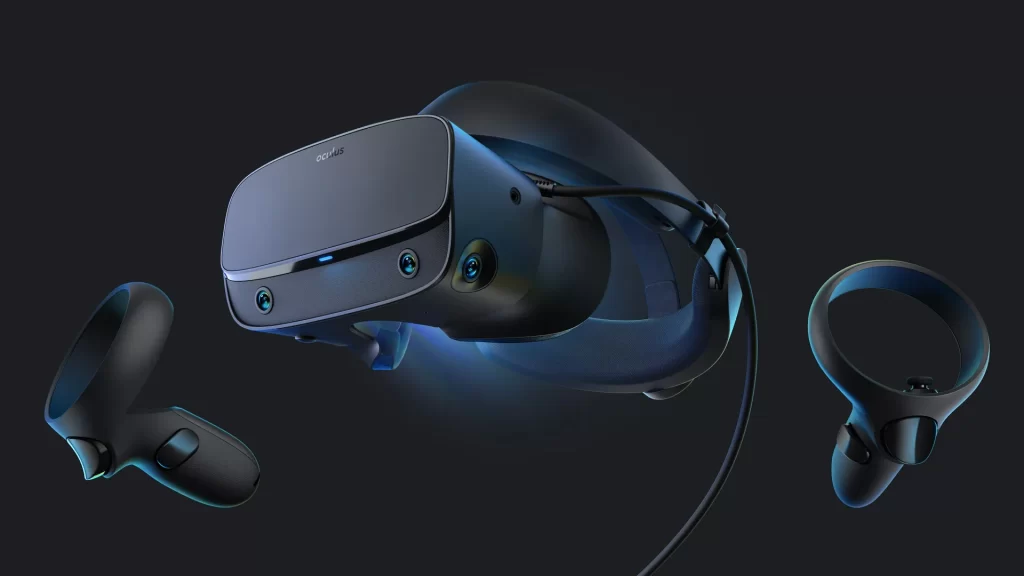
Before attempting to optimize a gaming laptop for VR, it is critical to check the gaming laptop against the headset. Some examples of these are the Meta Quest 3 and Rift S which require a GTX 1060 or better, the HTC Vive Pro 2 and RTX 2060 or better, and the Valve Index with a GTX 1070 or higher.
How to Run Compatibility Tests
Most VR platforms provide compatibility testing. Built-in test tools on SteamVR and Oculus gauge and provide details on the gaming laptop and VR partnerships.
Update Your Drivers
GPU Drivers
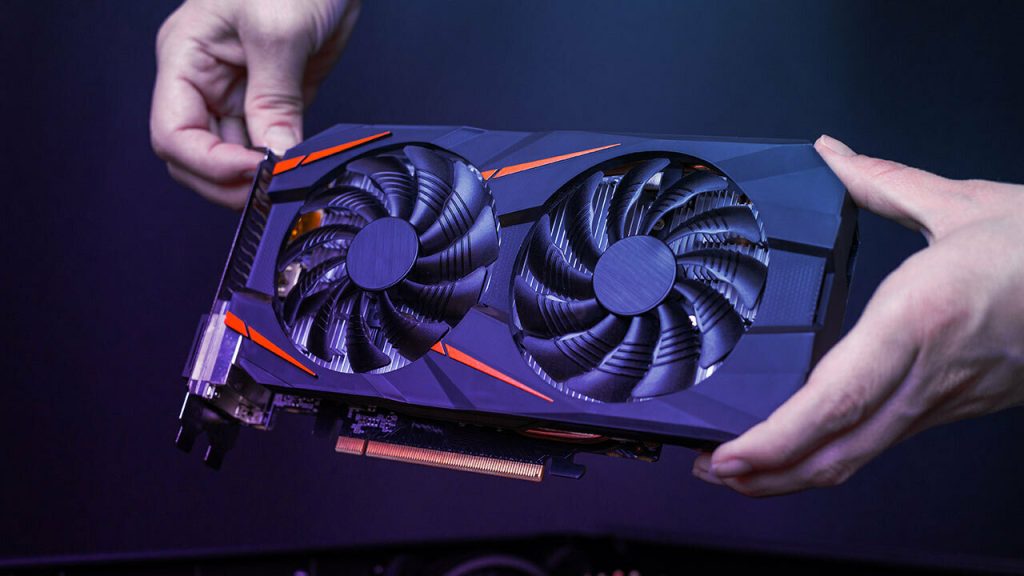
Ignoring driver updates can lead to diminished performance. Make sure to update your NVIDIA or AMD drivers via GeForce Experience or Radeon Software.
Motherboard and USB Drivers
VR headsets depend on USB connections. Make sure your chipset and USB drivers are current and use USB ports for VR headsets.
Optimize Graphics Settings
Adjusting VR Graphics Settings
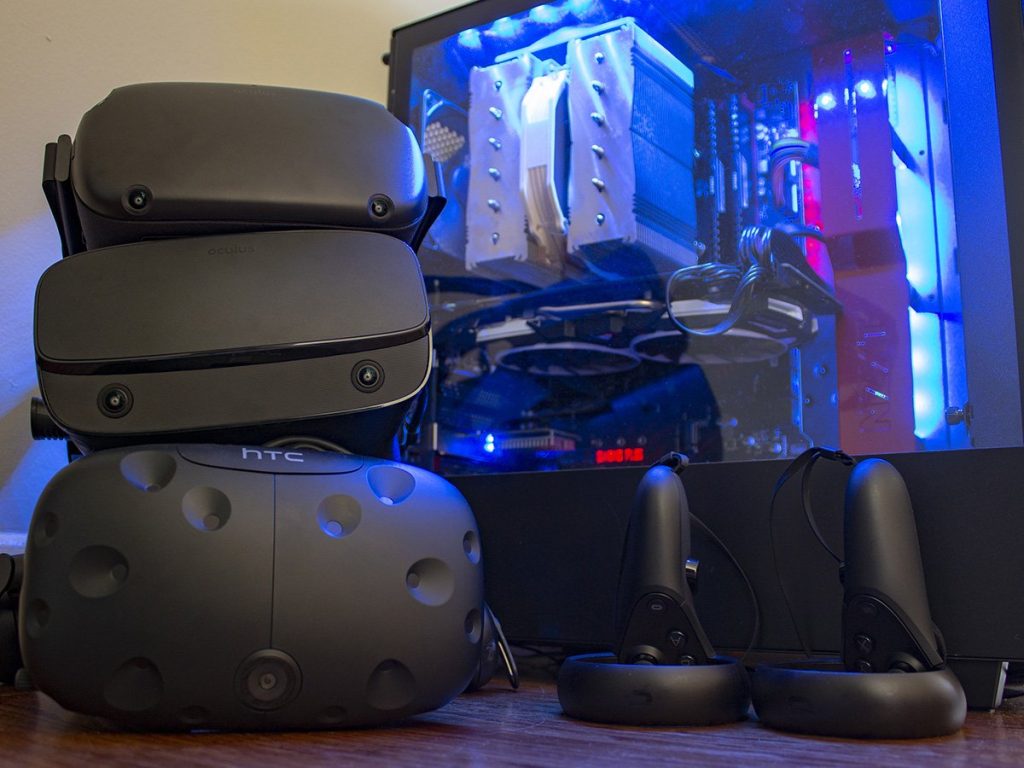
Lowering texture quality, anti-aliasing, and shadows helps performance and improves graphics.
Using VR Performance Tools
Check your frame rates and latency using features like SteamVR’s Motion Smoothing or the Oculus Debug Tool.
Manage Background Processes
Close Unnecessary Applications
Discord, Chrome, and system updates are background processes that consume RAM. Make sure they are closed before starting a VR session.
Disable Startup Programs
For better performance, use Task Manager → Startup tab to disable unnecessary autostarting programmes.
Enhance System Cooling
Importance of Temperature Management
Performance drops when your laptop superheats since it has to throttle to protect itself. Heat will always be the enemy of performance.
Best Cooling Practices for Laptops
- Using a Cooling Pad
- Keeping Your Vents Clean
- Avoiding Soft Surfaces
- Considering Under-volting Your GPU
- Enabling High-Performance Power Mode
How to Change Power Settings
Go to Control Panel → Power Options and select High Performance or Ultimate Performance. This works because it ensures your laptop runs at full potential.
Impact on VR Performance
While in this mode your laptop will be less likely to lower CPU or GPU speeds to conserve battery, which creates a better VR experience.
Using an External GPU (eGPU)

What is an eGPU
An eGPU is an external GPU enclosure that connects using Thunderbolt 3 or 4. This will give your laptop access to a desktop level GPU.
How It Boosts VR Experience
eGPUs will allow for much higher frame rates, which means you can increase the visual settings and improve immersion in VR games.
Optimize VR Software
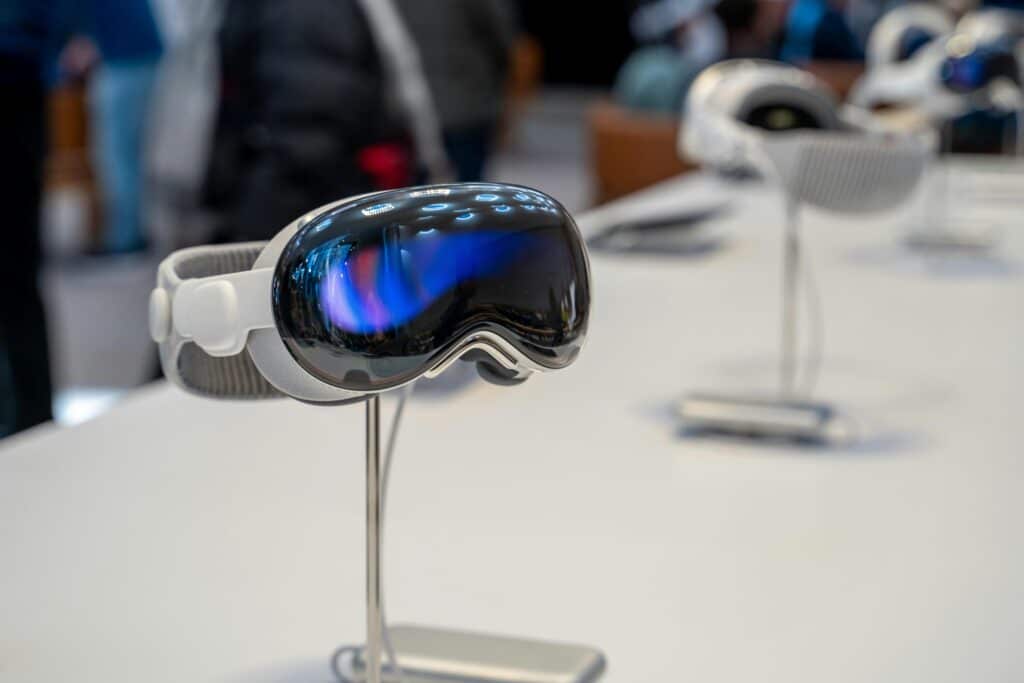
Adjusting SteamVR Settings
In SteamVR, you can adjust supersampling, motion smoothing, and frame timing in order to achieve a good balance between performance and the visuals.
Oculus and Other Platform Tweaks
Oculus users can utilise the Oculus Debug Tool to adjust render resolution and ASW (Asynchronous Spacewarp) to improve stability.
Adjust Display and Refresh Rate
Setting the Right Refresh Rate
VR works best at high refresh rates, 90Hz or higher greatly reduces motion blur and lag, providing a better experience.
How Display Affects VR Smoothness
A laptop with a high-refresh-rate display benefits VR since so much high-quality and rapid visual output is displayed with ease and very few frame drops.
Update BIOS AND FIRMWARE
Why This Matters
Updating your firmware and BIOS is a critical first step to ensuring the communication between your machine components is seamless and to optimising the performance of your components as well as the elimination of any bugs.
How to Safely Update
Go to your laptop manufacturer’s website to download the most up-to-date BIOS file and follow the provided instructions to the letter.
Clean and Maintain Your Laptop
Remove Dust and Junk Files
Use compressed air to clean out vents and use disk cleanup utilities such as CCleaner or Windows Storage Sense to get rid of any old files.
Use Optimisation Tools
Tools such as MSI Dragon Centre or Alienware Command Centre will manage your system’s performance and automatically adjust fan curves and performance modes according to the load on the system.
Check Your USB Ports and Device Connections
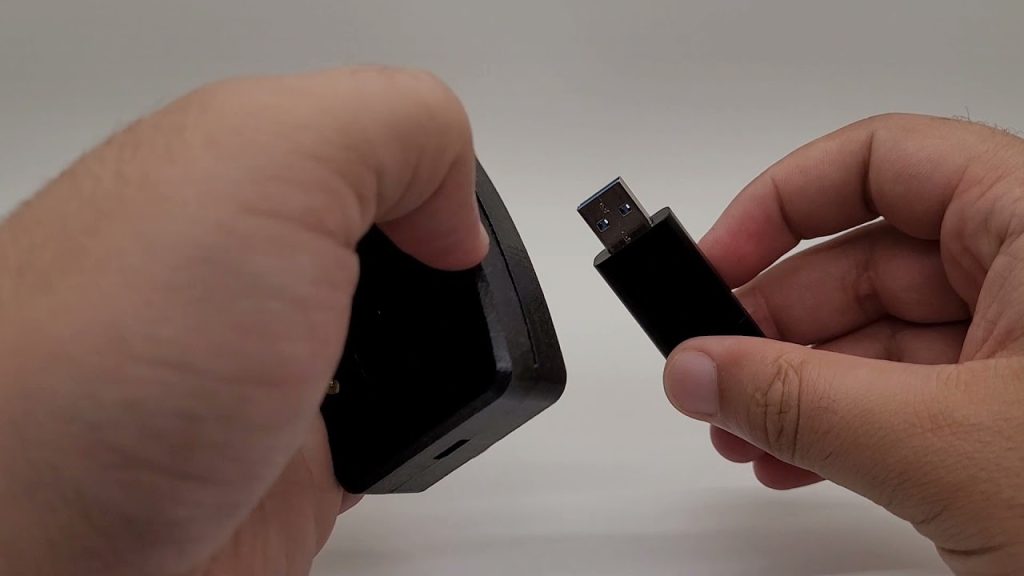
Provide Adequate Bandwidth for VR Headsets
VR headsets require fast USB 3.0 connections. Connect VR headsets to dedicated high-speed USB ports and don’t use USB hubs.
Adjustment for Better Bandwidth
Use short, certified cables, do not daisy chain devices, and stay current with your headset firmware.
Conclusion
Optimising a gaming laptop for VR is about performance rather than merely meeting specified components. From driver updates to the powering and finely tuned graphics, these measures guarantee smooth transport to and within virtual worlds. Better optimisation increases immersion.
FAQs
Q1. What is the minimum GPU requirement for virtual reality on laptops?
Most virtual reality games can be played with a GTX 1060 or RTX 3050.
Q2. Is it possible to use an external GPU for virtual reality?
Certainly! Using an eGPU over Thunderbolt will significantly boost performance for virtual reality.
Q3. I have a high-end GPU for virtual reality, why is there lag?
Lag can be caused by background applications, outdated drivers, and thermal throttling.
Q4. Is it advisable to use a cooling pad for virtual reality gaming?
Yes, cooling pads manage your laptop’s temperature during extended virtual reality gaming sessions.
Q5. For virtual reality, how frequently should I update drivers?
To achieve the best performance, update your drivers, particularly GPU and chipset drivers, on a monthly basis.